Skip to content

From first contact to the next sale.

Explore the features connecting customer data, proposals, communication and your team's daily work. Choose an area and see how it can support your business.

Move from customer details to a proposal, conversation and next action. The account owner can review earlier discussions, send a proposal and plan a follow-up across connected areas of the platform. Explore six features that help your team preserve that context throughout a sale.

Proposals that lead to action

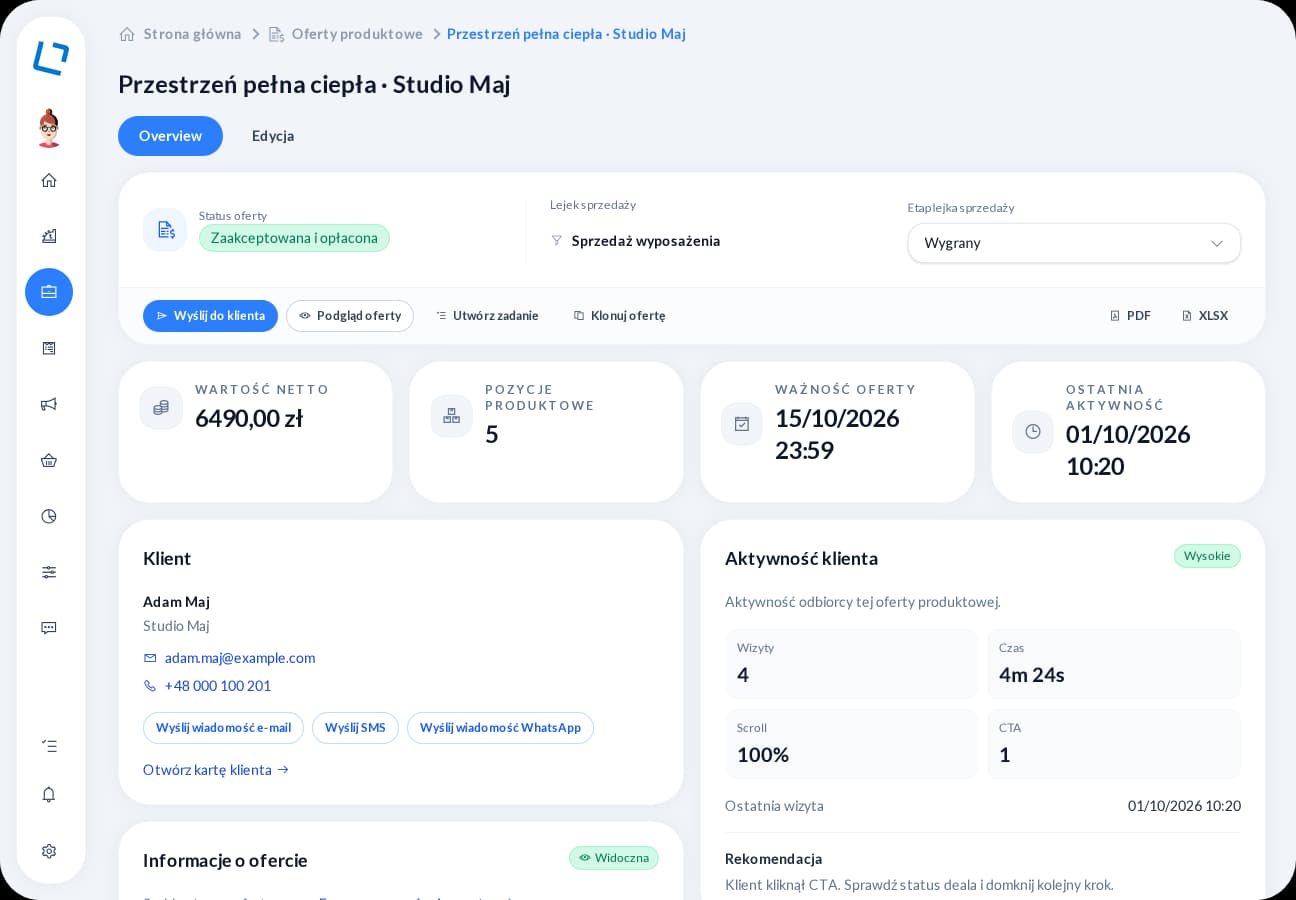
Interactive online proposals

Prepare a proposal with products and content, publish it as a link and follow the recipient's activity. Connect their response with the next step in your sales process.

Give recipients selected actions: accept, negotiate or request contact. When you return to the proposal, review its status and connected customer to prepare a response that fits the current discussion.

  • Templates and products
  • Acceptance and negotiation
  • Customer activity history
Explore online proposals
oroom.one proposal overview with status, sales stage and customer activity

One reference point for your team

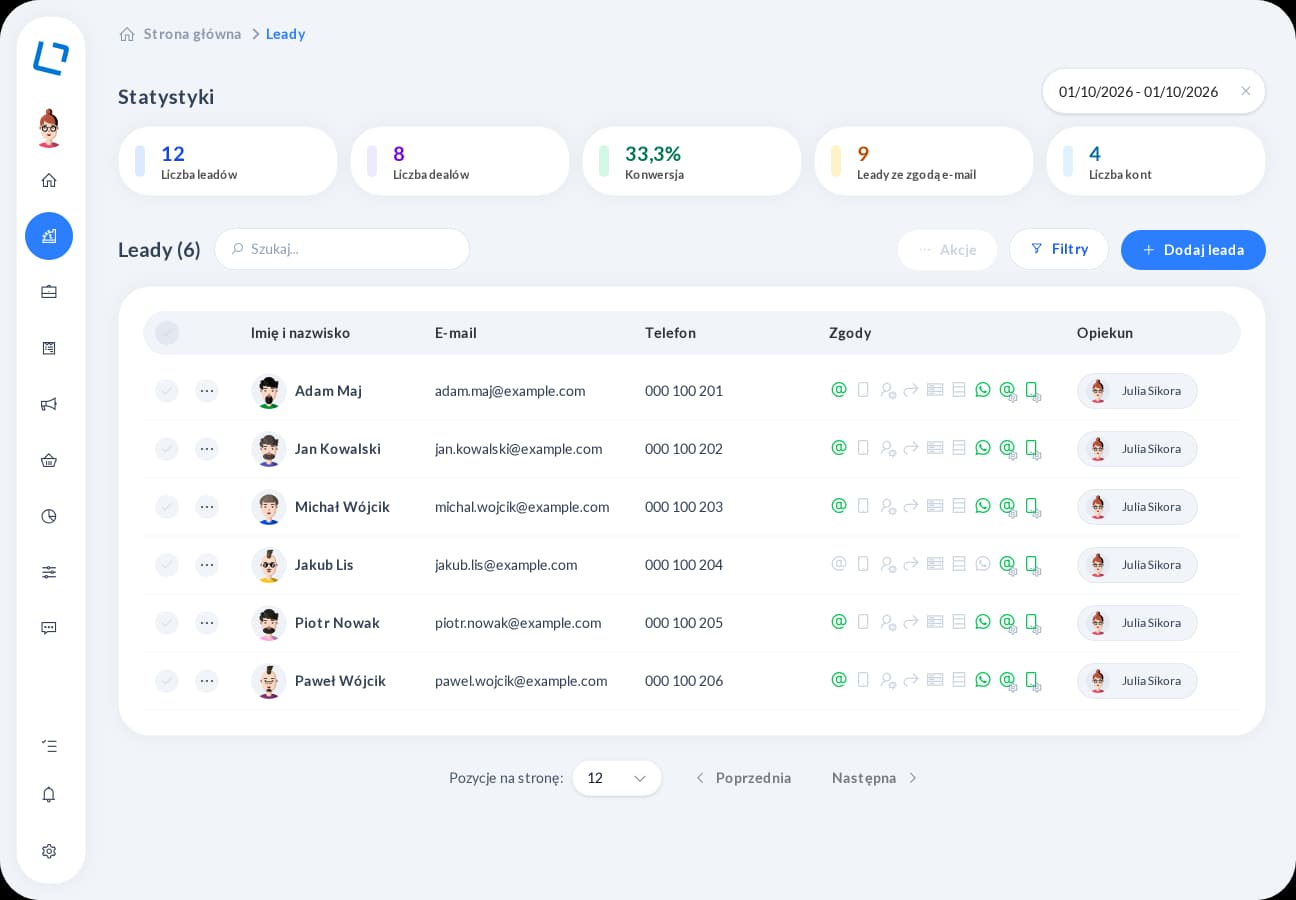
CRM and customer database

Bring contact details, companies, notes and related activities together. The account owner can see the customer's context and prepare for the next conversation.

Before calling, review notes, recent conversations and proposals linked to the contact. Add a task with a due date and assignee so agreements lead to action and another teammate can pick up the same case.

  • Contacts and companies
  • Notes and owners
  • Tasks with deadlines
Explore CRM
oroom.one CRM contact list with statistics, filters, consents and account owners

Conversations with shared context

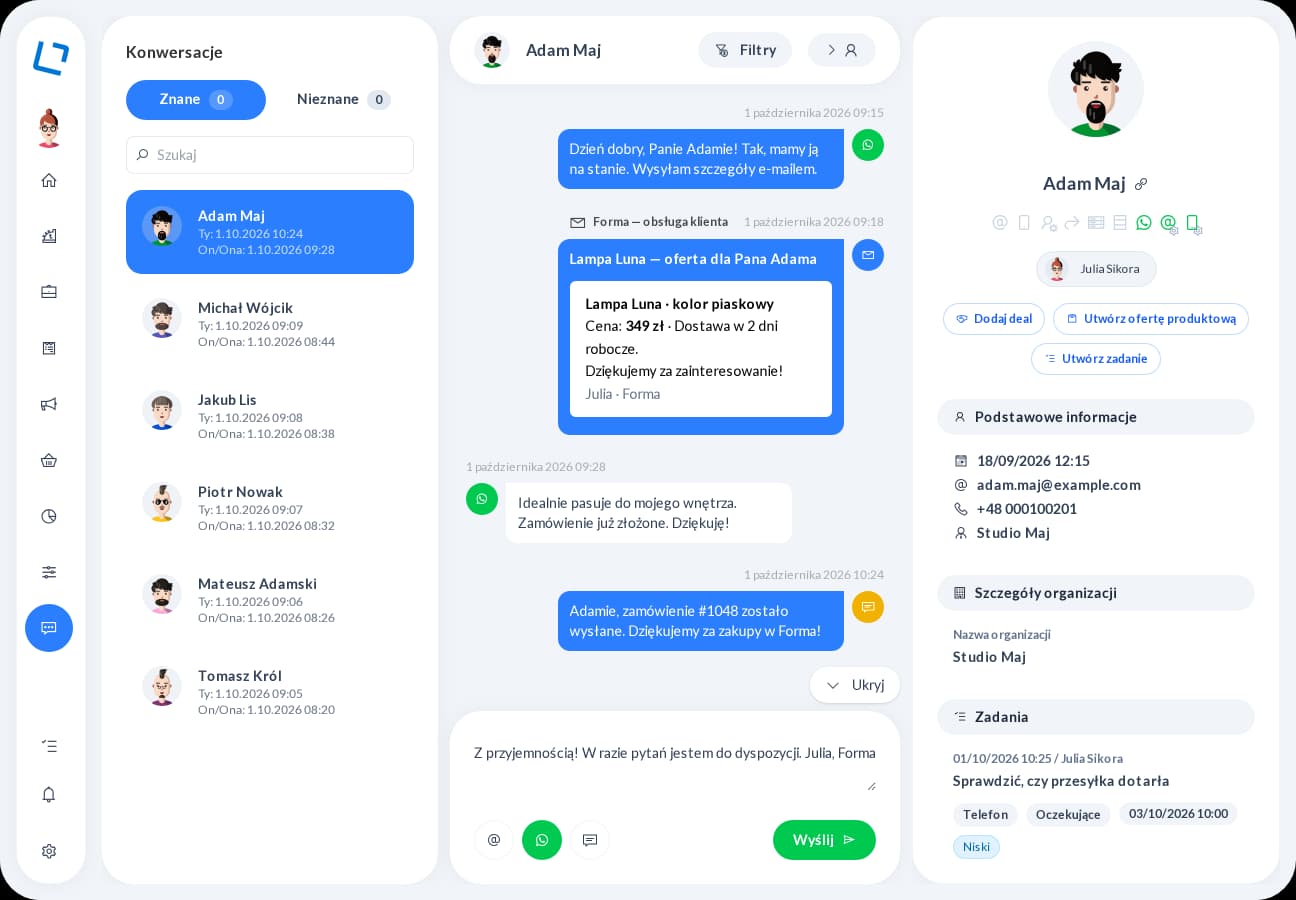
Customer communication

Manage email, WhatsApp and SMS conversations in the context of customer data. Choose a reply channel and review the shared message history to continue the conversation without searching across several tools.

Refer to earlier discussions when replying and select a channel available for that contact. The message stays in the conversation history, making it easier to check what has already been shared before your next exchange.

  • Email, WhatsApp, SMS
  • Shared conversation history
  • Customer details alongside
Explore customer communication
oroom.one conversation view with message history and customer information

Repeatable actions under control

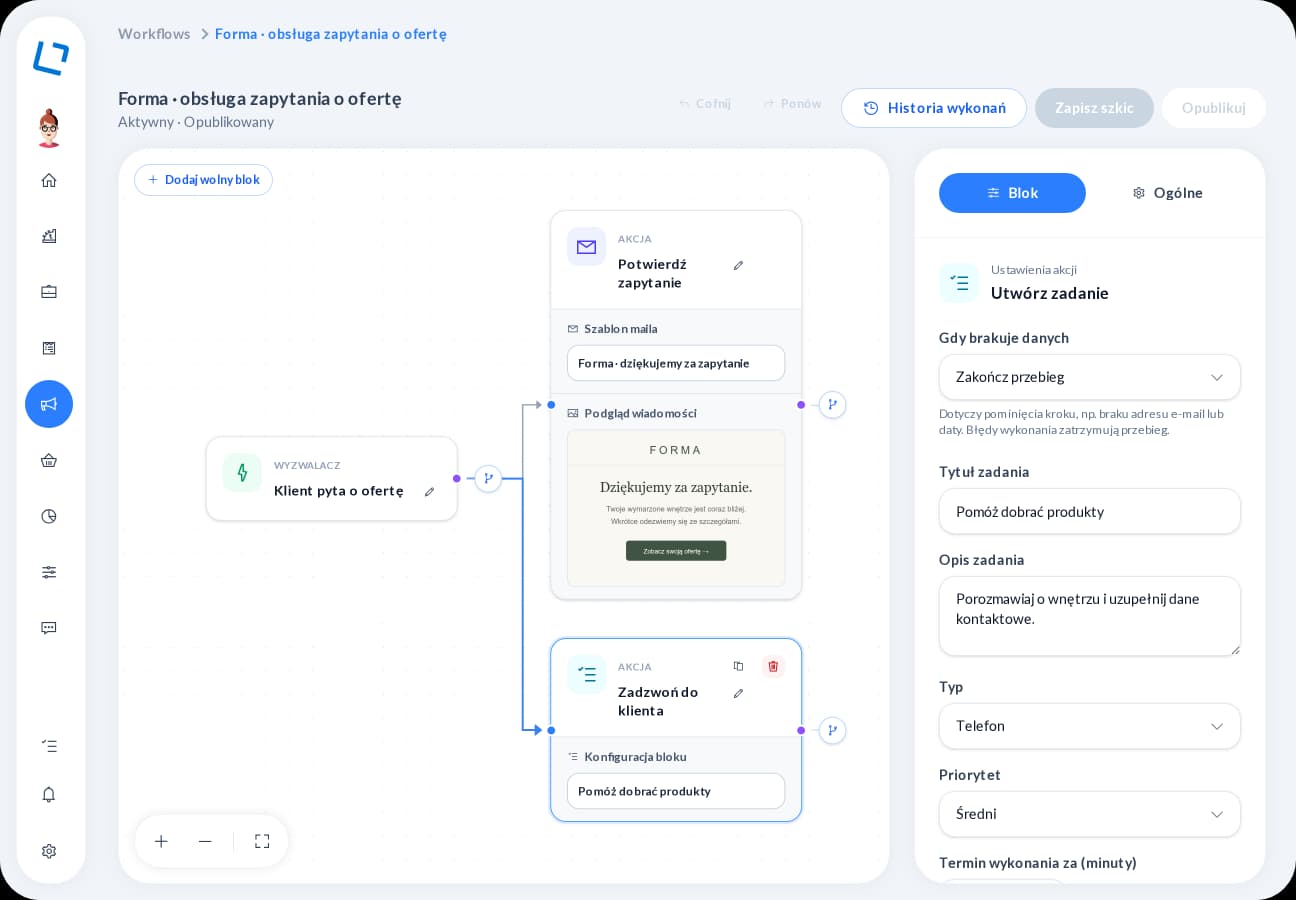
Automation

Connect CRM and form events with messages, tasks and data updates. Build a scenario in the visual editor and inspect its run history.

After a form submission, send a confirmation, wait for a specified time and check a condition before the next action. Create a task for the owner or change a deal stage, then inspect how the workflow ran.

  • Visual workflow editor
  • Conditions and waits
  • Step execution history
Explore automation
oroom.one visual workflow editor showing connected process steps

A clear view of sales progress

Pipelines and sales opportunities

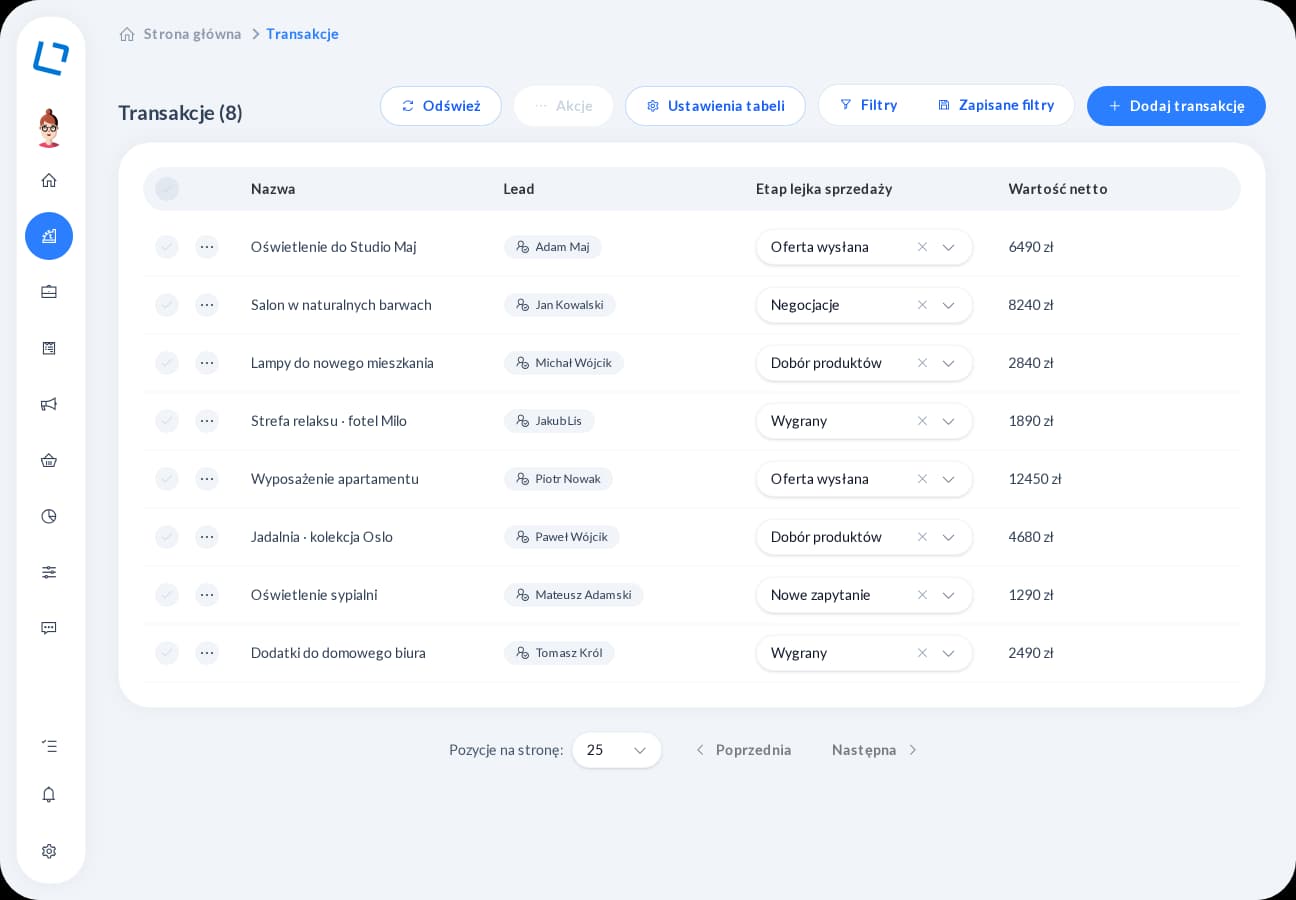
Organize sales opportunities into pipelines and stages. Connect the customer, account owner and proposal, and review changes as your team moves the sale forward.

Choose a pipeline, assign an owner and connect the opportunity to a specific proposal. Filter the list and review stage history before contacting the customer, so you know what to confirm and which action comes next.

  • Pipelines and stages
  • Assigned deal owners
  • Stage change history
Explore sales pipelines
oroom.one deal list with customers, sales stages and proposal values

From content to campaign results

Email marketing

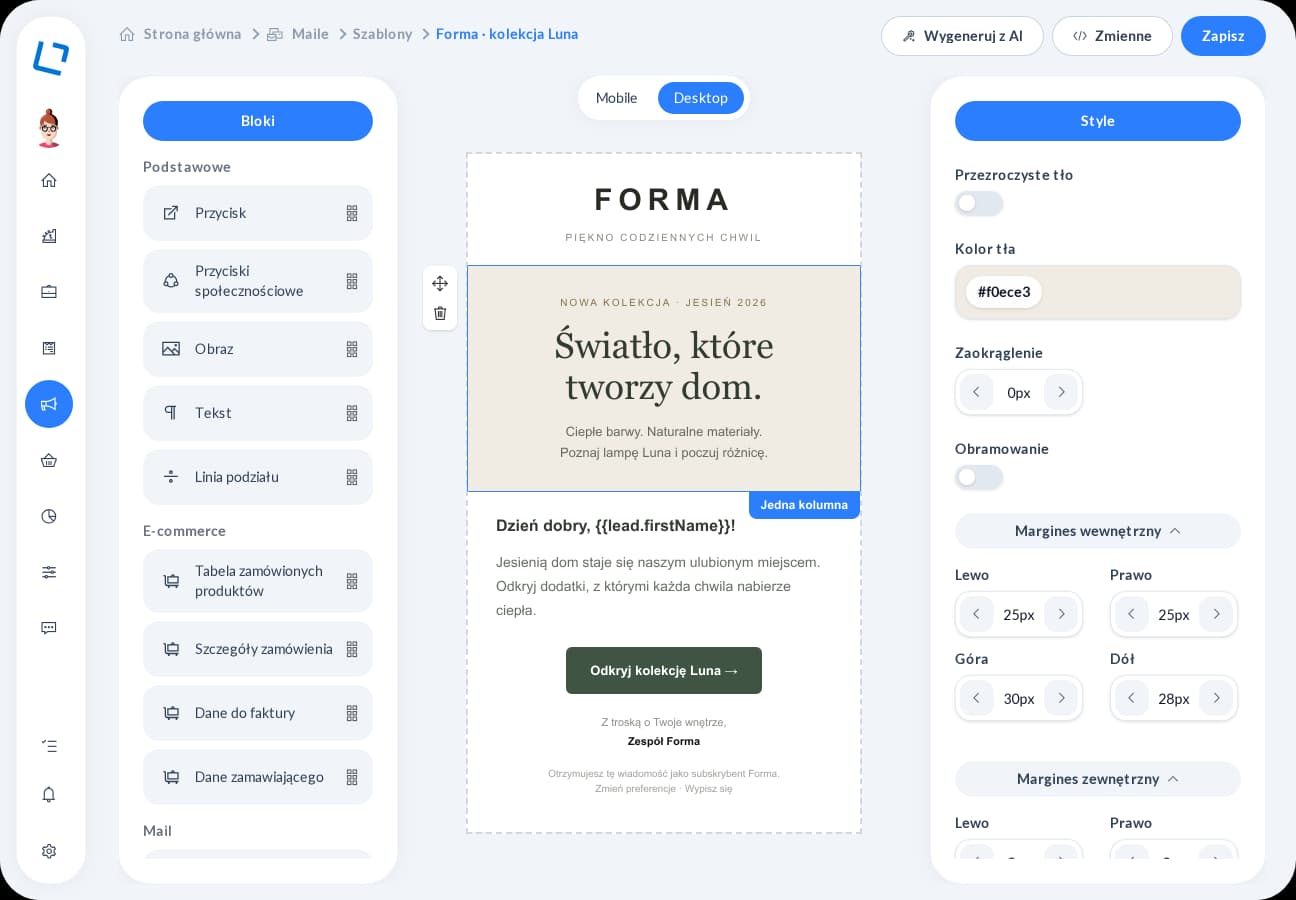
Build messages in a drag and drop editor, personalize them and schedule campaigns. After sending, review deliveries, opens and clicks.

Build a message from blocks and adapt its content to your selected audience. Review a test email before the scheduled send, then compare interest in individual links to help prepare your next campaign.

  • Drag and drop
  • Personalization and templates
  • Scheduled campaign sends
Explore email marketing
oroom.one drag and drop email editor with a message template preview

Product interface in Polish with demonstration data

See how the features work together

Explore an example process that starts with a form submission. Contact details reach CRM, and a configured workflow can send a confirmation and create a task for the account owner. You define the conditions and sequence of actions that help your team take over the inquiry.

  1. A customer submits a formThey share contact details and answers.
  2. The contact reaches your CRMYour team gets shared customer context.
  3. A workflow startsThe process checks conditions and runs the next steps.
  4. A message or a taskThe customer receives an email and the owner knows what to do next.

More ways to support your process

Extend customer service with content, forms, bookings, orders and connections to other tools. Collect information before a conversation, share available times and track what happens next in the sale. Choose the areas that match how your business attracts and serves customers.

Sales and proposal analytics

Connect recipient activity with sales progress. See which proposals have been viewed, where interest appears and which customers need a follow-up.

Start with unopened or expiring proposals, or those needing attention after checkout begins. Compare their status with recipient activity and suggested next actions to decide which customers to contact first.

Explore analytics

CMS and content

Prepare pages and blog posts in a block editor. Organize language versions, SEO settings and the files used in your content.

Build a page from blocks, select files from the library and complete content in supported languages. Categories, addresses and metadata organize the material your website retrieves through its configured CMS connection.

Explore the CMS

Forms and surveys

Tailor survey questions to the recipient, collect contact details and analyze responses. Connect selected forms with further customer handling in CRM.

Show additional questions only when earlier answers make them relevant, and mark required fields. Once responses arrive, review the results or export the data to prepare a conversation or your team’s next steps.

Explore forms and surveys

Bookings and meetings

Offer meeting slots or resource bookings. Choose the right scenario: a conversation with an account owner or a booking with extras, pricing and checkout.

For a meeting, the customer chooses an available time and shares contact details. For a resource booking, they choose dates and extras and continue through pricing and checkout while your team reviews the details in the panel.

Explore bookings and meetings

Products, orders and payments

Maintain product information, use it in proposals and handle orders linked to customers. Connect the process to delivery and configured payment methods.

Complete product prices, stock levels and descriptions, then use that information when preparing a sale. Review the customer, selected items and payment status alongside an order to answer questions about its handling.

Explore order management

Integrations and API

Exchange data with selected sales, communication and service systems. Match integrations to your process and decide which information should reach the platform.

A Shoper order can reach the platform for handling, while the wFirma integration supports issuing an invoice. For each connection, we establish the data scope and synchronization direction so your team has the right information.

Explore integrations

See the platform in your business context

Tell us where your customers come from, how you prepare proposals and what happens after you send them. We will demonstrate relevant features in one scenario, from inquiry to the account owner's next action. Together, we will establish the modules, integrations and configuration you need.